In this guide, we'll explain how to copy requests as cURL with Edge. We'll copy the requests on review data on web-scraping.dev. However, the same approach can be applied to other websites as well:
- Go to the page URL where you want to copy the requests.
-
Open the browser developer tools on Edge by pressing the
F12key. - Select the Network tab from the top bar.
-
Empty the request log (
Ctrl+L) to clear it for the desired request. -
Activate the request to record it. It can differ based on the target, such as:
- Scrolling down.
- Clicking on a specific link.
- Clicking on the next pagination button.
- Filtering the data using filter buttons.
- Searching for specific data.
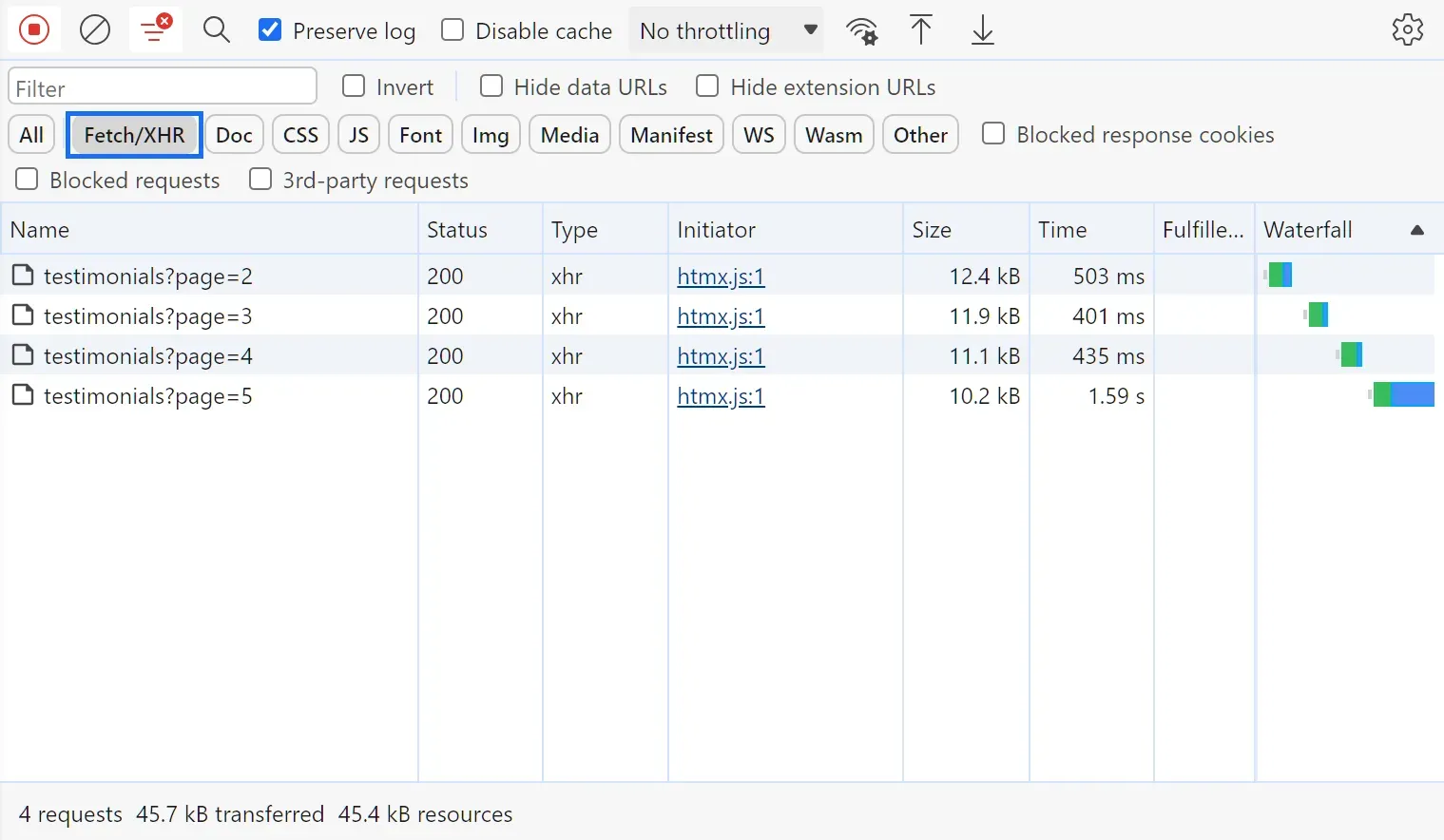
Filter the requests by the target request type,
Doc(HTML) orFetch/XHR(JSON). You will find the requests recorded:
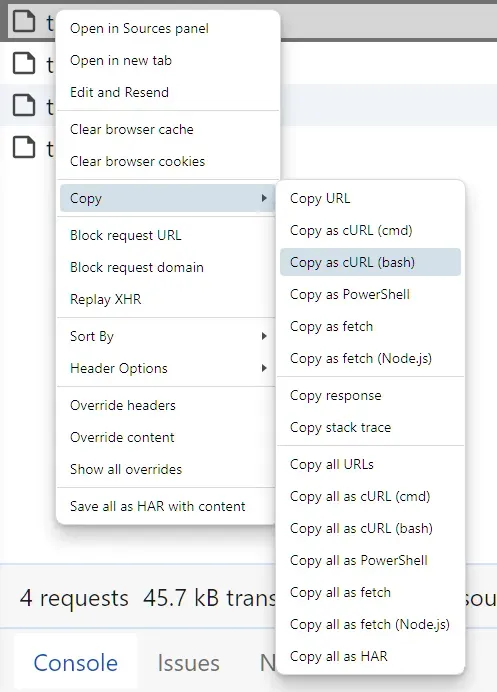
Right-click on the request, select copy, and then copy as cURL (bash):
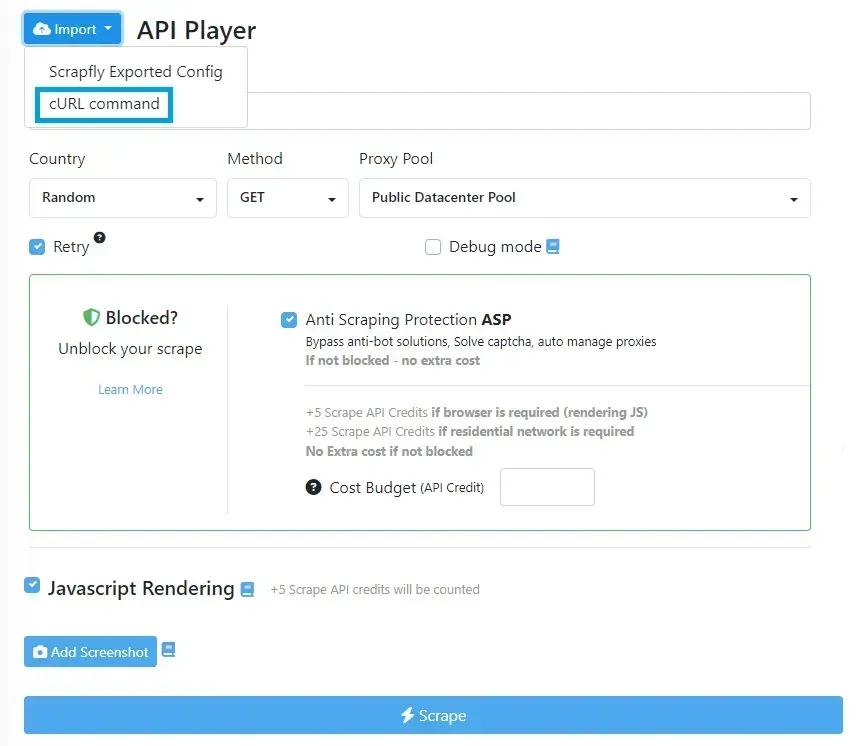
We have explained converting cURL requests into Python. However, the same apporach can be used to convert cURL into Node.js and other programming languages using HTTP clients. For further details, refer to our dedicated guide on Postman.